OSX: Converting Parallels or VMWare to VirtualBox

I use Windows on my Mac in two ways: Vista Premium through bootcamp and Windows 7 and Windows XP as virtual machines through the OSX desktop.

Previously I was using Parallels to run my virtual machines but since my trial version expired I wasn’t able to access my virtual OS any more. Then I came across Sun’s free offering VirtualBox (in this walkthrough I’m running VirtualBox version 2.1.4) - it does everything I need, and it’s free!

The only pickle with switching virtual machine software was I didn’t want the hassle of re-loading Windows XP as I’d spent some time building it up/adding programs etc under Parallels.

After much googling I came across a number of solutions, however, none as easy as the one I am suggesting here. If anyone else is in the same situation, I hope it helps:

Converting a Parallels virtual machine to VirtualBox:

1. Download the trial version of VMWare Fusion (I used version 2.0.2.)
2. Once installed, start VMWare Fusion, and choose File > Import from the menu
3. Browse to the Parallels folder (if it doesn’t default there) and choose the appropriate directory (e.g. Windows XP) and then choose the relevant file ending in .pvs e.g. Windows XP.pvs

You’ll now see a window like this:
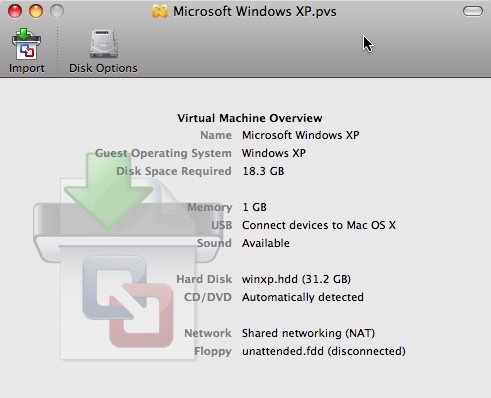
4. Click the Import button. Choose a name & location for the new machine and click ‘Save’
5. Watch something on TV, go walk the dog, contemplate life. Whatever you do, it will probably take a good 30 mins.
6. Eventually you will get a confirmation message. Great so far. Trouble is, we don’t want it to work in VMWare Fusion, we want it to work in VirtualBox. So…
7. Using the Finder locate the new VMWare Fusion version of the Windows XP virtual machine (the file will be wherever you saved it in Step 5 and will end with a .vmwarevm extension e.g. ‘Windows XP.vmwarevm’). Now right-click the file and select ‘Open Enclosing Folder’ from the menu.
8. From the next Finder window, right click on the same file again but now choose ‘Show Package Contents’.
9. In the window that now opens, copy all those files (most end .vmdk) and paste them into a new folder someplace else. I called mine ‘WINXP’ and saved it on the desktop but you can put it anywhere you like.
10. Shut down VMWare Fusion
11. Open VirtualBox
12. Click ‘New’, then ‘Next’, then name your OS e.g. ‘Windows XP’ and choose the relevant settings on the two drop downs below. Here is what I mean:

13. Now click ‘Next’, accept the defaults on the next screen and click ‘Next’ again.
14. On the next screen (headed as ‘Virtual Hard Disk’), click the ‘Existing’ button.
15. On the window that opens, click ‘Add’ on the top menu and browse to the folder you made in Step 9. Choose the file name e.g. winxp.vmdk (don’t choose the numbered ones e.g. winxp-s016.vmdk) and click ‘Open’.
16. Back on the main screen now, click ‘Next’ again and then ‘Finish’.

Et Voila! You now have your Parallels machine working in VirtualBox.

Bookmark and Share

18 Responses to “OSX: Converting Parallels or VMWare to VirtualBox”

  1. John Faulds says:

    I’m trying to go direct from VMWare to Virtualbox and followed your instructions, but when I go to start the VM, it just hangs at the point where the screen is black with a white bar along the bottom (ie before even booting properly into Windows). Would it have anything to do with trying to import from a VMWare whose demo period has already expired?

    • benfrain says:

      John, I’m not sure, I’ve only ever come from a Parallels VM to VirtualBox. However, I have done that successfully with a Parallels VM that had expired (was setup on a demo of Parallels which had since expired) and had no problems. Not sure if the same can be done with VMWare machines where the licence has expired, sorry.

  2. Adrian says:

    Hi John,

    Not sure if this is any help in working out why it’s not working but when I tried to perform the Parallels Vista 64 Ultimate to VMWare Fusion (in preparation to go to VirtualBox), I got an error in VMWare saying that my VM Session hadn’t shut down cleanly during the import.

    I guess I just rebooted the Mac one time and never restarted Parallels as the trial 14 days had expired.

    Anyway off to Parallels site to register and get another 14 days, re-install a new Parallels, restart Vista and shut it down properly fixed the problem and now I’ve got a VMWare conversion.

    So, maybe your Windows OS hadn’t shutdown correctly and VirtualBox didn’t pick it up like VMWare did for me.

    Just a thought! Anyway, you should be able to get another trial key from VMWare.

    Hope you get some luck.

    I’m just at the stage of checking VMWare runs my Vista install ok.

  3. Adrian says:

    Hmmm, well VMWare did it’s initial stuff, restarted Vista and nicely cleaned off all the contents of my desktop. Any idea where it would have put the files ???

  4. Adrian says:

    Ok, ignore me, I’m going mad. Just restarted my parallels VM and realised the desktop icons that seemed to be missing in VMWare conversion were actually the Mac’s Desktop icons and VMWare wasn’t setup to do it’s Unity thing !!!

  5. Kathy says:

    These steps worked perfectly for me in transferring a Vista virtual machine from Parallels. I had a second virtual hard drive in Parallels, so I just had to add it to VirtualBox after the fact. The only thing I neglected was to uninstall ParallelsTools in Parallels prior to doing the conversion — doesn’t seem like it can be easily uninstalled once the machine is in VirtualBox.

  6. Jay says:

    Thanks for documenting this solution. I was wondering how I was going to migrate my Parallels 2.5 installation to VirtualBox, and now I know!

  7. Josh says:

    Thank you SO MUCH for these instructions! The first time I went through them, importing an Ubuntu installation, I got some strange errors (invalid magic number?!?) at step 15 trying to import the converted vmdk. The solution was to restart VirtualBox, open the Virtual Media Manager and add the vmdk FIRST. This worked fine. Then I created the VM and added the vmdk, and everything worked.

  8. Ben says:

    For anybody experiencing the same problem as John above, try checking the “Enabled IO APIC” box in the VirtualBox settings.

  9. Brady says:

    Ben - Thank you for the “Enable IO APIC” trick. That fixed the non-boot issue I was having.

  10. chris says:

    ben, thanks much! worked like a charm for me as well.

    peace,

    chris

  11. Dave says:

    Ben– that fix was a huge help for me too. Now I can finish my server migration and enjoy Christmas without that hanging over me. I owe you!

  12. Robert says:

    Hmm, even when I check “Enable IO APIC”, I’m having problems. I am able to get to the Win XP loading screen, then I get the BSOD and it rebbots. If I start XP in Safe Mode, the system seems to hang when loading “agp440.sys”:

    [URL=http://imgur.com/svA6U.jpg][IMG]http://imgur.com/svA6U.jpg[/IMG][/URL]

  13. Robert says:

    Never mind. It seems to be a problem with that agp440.sys driver & Virtualbox.

  14. Fredrik says:

    Regarding Parallel Tools. According to this site:

    http://download.parallels.com/desktop/v5/docs/en/Parallels_Desktop_Users_Guide/23651.htm

    it can be uninstalled from Mac OS.

  15. yannick says:

    Since my demo is expired, how can I uninstall parral tools without start my virtual machine?

  16. benfrain says:

    yannick - if you follow the steps above you won’t need to even start Parallels.

Leave a Reply


Valid XHTML 1.0 Transitional © benfrain.com 2007-2008 | UK Based Freelance Writing and Web Design