VS Code – highlight just the active indent guide
Long term readers may wonder – VS Code, Ben? Really? Let’s not getting into that now, instead, just the issue before us.
The problem before us is that we want to highlight just the active indent guide of the code in the editor. By default, VS Code highlights both the active indent level, and also, with less brightness, the inactive indent levels.
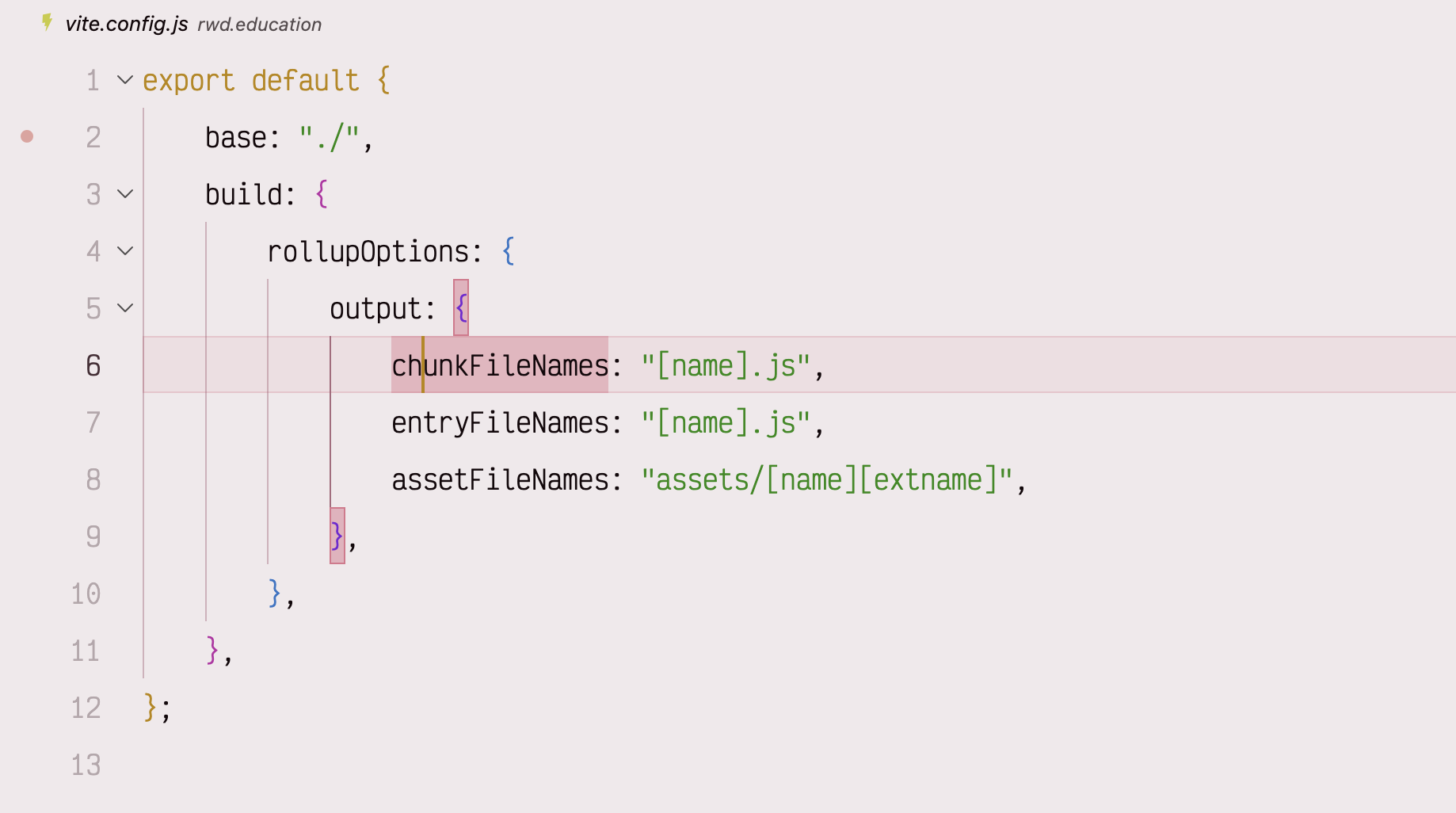
The problem
Sadly, there is currently no setting to have just the active indent guide shown – it would be lovely if the Editor > Guides: Highlight Active Indentation setting had an only option. Alas, it does not.
I then came by this YouTube video, which around 6 minutes in, describes adding something like these settings to your settings.json:
"workbench.colorCustomizations": {
    "editorIndentGuide.background1": "#00000000"
}
The idea being that the lines are still there, you just render the non-active ones transparent, which we do here using 8-digit hex, with the last two digits setting the transparency, so you only see the active one. Incidentally, if you didn’t know that hex has a 4-digit and 8-digit syntax for transparency, I covered that here.
But there in an issue.
When you do this, all the indent guides are rendered transparent. Boo! Hiss! Throw cabbages at the monitor etc. This is, I’m pretty sure, a bug, and you can see someone has opened a ticket on it here: https://github.com/microsoft/vscode/issues/189624
The workaround
Turns out that if you add even a little mathematical opaqueness to the ‘normal’ background, the guides are all rendered. So given that, we can amend our settings thus:
"workbench.colorCustomizations": {
    "editorIndentGuide.background1": "#00000001"
}
As Alan Partridge might declare, ‘Back of the net’!
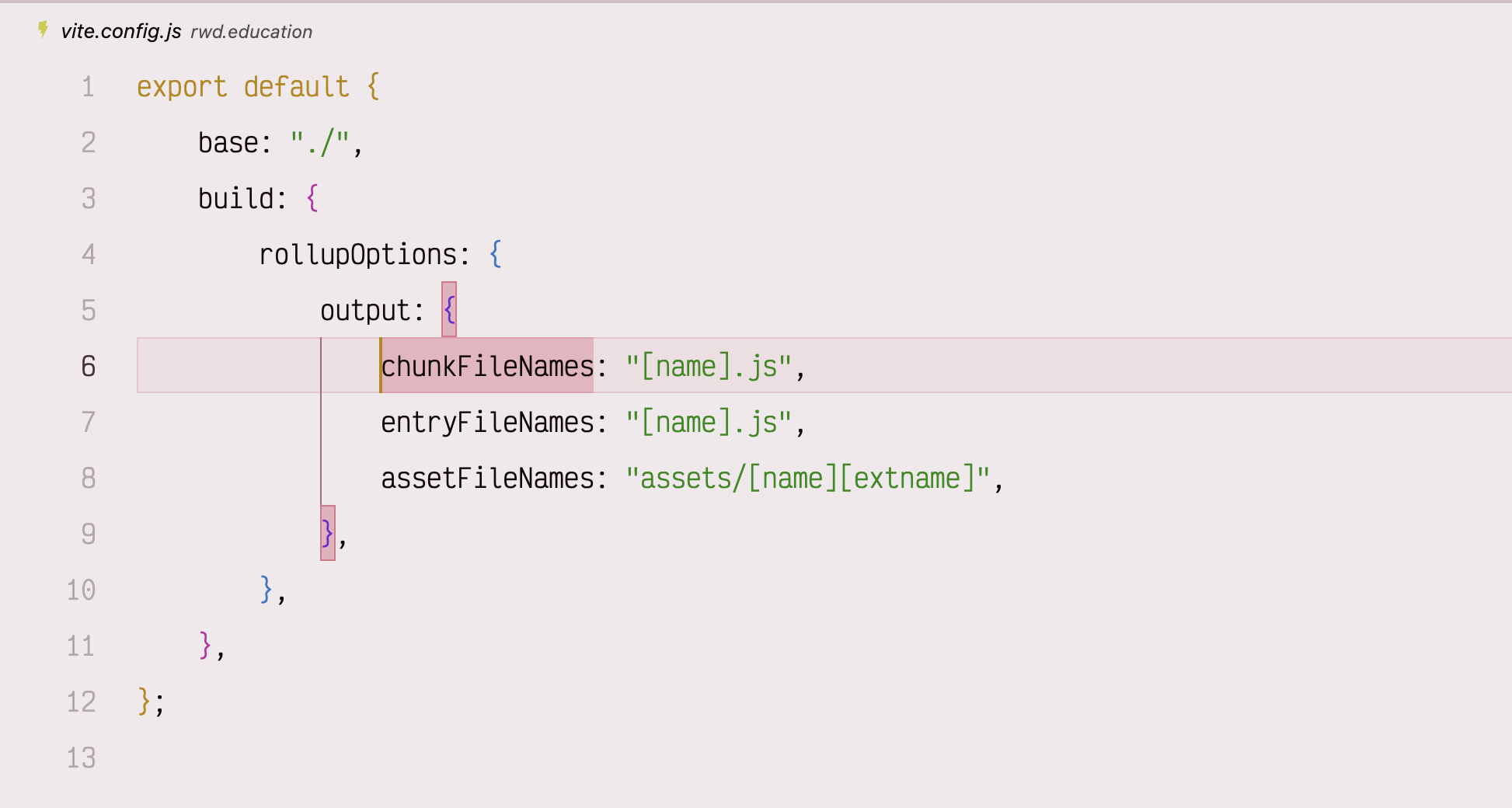
Also, if you know you want a different specific color for the active indent, you can set it like this:
"workbench.colorCustomizations": {
    "editorIndentGuide.background1": "#00000001",
    "editorIndentGuide.activeBackground1": "#ff9900"
}
Leave a Reply